As StorageReview expands our enterprise test lab, we're finding a greater need for additional latest generation servers (like the HP D380p Gen8); not just from a storage perspective, but from a more global enterprise environment simulation perspective as well. As we test larger arrays and faster interconnects, we need platforms like the HP DL380p to be able to deliver the workload payload required to these arrays and related equipment. Additionally, as PCIe storage matures, the latest application accelerators rely on third-generation PCIe for maximum throughput. Lastly, there's a compatibility element we're adding to enterprise testing, ensuring we can provide results across a variety of compute platforms. To that end HP has sent us their eighth-generation (Gen8) DL380p ProLiant, a mainstream 2U server that we're using in-lab for a variety of testing scenarios.
While some may wonder about the relevancy of reviewing servers on a storage website, it's important to realize how vital the compute platform is to storage performance, both directly and indirectly. When testing the latest PCIe Application Accelerators for example, for maximum throughput, it's critical to make sure compute servers are ready in areas ranging from hardware compatibility, performance scaling and saturation, to even often overlooked elements like how a server manages cooling.
Case in point, most 2U servers use riser boards for PCIe expansion, and knowing what drives those slots is just as important as the slots themselves. If one 16-lane PCIe slot is being shared for three slots, those may under-perform compared to a solution that uses two 16-lane PCIe slots to share between three riser slots. We also have an eye toward how well manufacturers make use of the cramped real-estate inside 1U and 2U servers, as all are not created equal. Items in this category can vary from everything from cable management to how many features are integrated versus requiring add-on cards, leaving PCIe expansion entirely open to the end-user instead of utilizing those slots for RAID cards or additional LAN NICs. Even the way server vendors handle the traditional SATA/SAS bays can be vastly different which could be the difference between an ideal server/storage relationship and one that is less desirable.
The HP ProLiant DL380p Gen8 Server series is comprised of 2U, 2-socket compute servers that feature a Smart Array P420i RAID controller with up to 2GB Flash Backed Write Cache (FBWC), up to five PCIe 3.0 expansion slots and one PCIe 2.0 expansion slot, and extensive built-in management capabilities. Our server accepts small form factor (SFF) 2.5-inch SAS, SATA, or SSD drives, while other configurations of the ProLiant DL380p Gen8 servers accepting large form factor (LFF) 3.5-inch drives are also available.
Our HP ProLiant DL380p Gen8 Specifications:
- Intel Xeon E5-2640 (6 core, 2.50 GHz, 15MB, 95W)
- Windows Server 2008 R2 SP1 64-Bit
- Intel C600 Chipset
- Memory - 64GB (8 x 8GB) 1333Mhz DDR3 Registered RDIMMs
- 768 GB (24 DIMMs x 32G 2R) Max
- PCI-Express Slots
- 1 x PCIe 3.0 x16
- 1 x PCIe 3.0 x8
- 1 x PCIe 2.0 x8 (x4 electric)
- Ethernet - 1Gb 331FLR Ethernet Adapter 4 Ports
- Boot Drive - 600GB 10,000RPM SAS x 2 (RAID1)
- Storage Bays - 8 x 2.5" SAS/SATA hot swap
- Smart Array P420i Controller
- I/O Ports
- 7 x USB 2.0 (2 front, 4 rear and 1 internal)
- 2 x VGA connector (front/rear)
- Internal SD-Card slot
- Management
- HP Insight Control Environment
- HP iLO 4; hardware-based power capping
- Form Factor - 2P/2U Rack
- Power
- 460W Common Slot Platinum Hot Plug
- HP Standard Limited Warranty - 3 Years Parts and on-site Labor, Next Business Day
- Full HP ProLiant DL380p Specifications
Hardware Options
The DL380p Gen8 series features configurations with up to two Intel Xeon E5-2600 family processors, up to five PCI-Express 3.0 expansion slots and one PCI-Express 2.0 slot (three with single CPU, six with dual CPU). The standard riser configuration per CPU includes one x16 PCIe 3.0 slot, one x8 PCIe 3.0 slot, and one x8 PCIe 2.0 slot. HP offers different configuration options, with an optional riser that supports two x16 PCIe 3.0 slots. The unit can also support up to two 150W single-width graphics cards in a two processor, two riser configuration with an additional power feed.
Each Intel Xeon E5-2600 processor socket contains four memory channels that support three DIMMs each for a total of 12 DIMMs per installed processor or a grand total of 24 DIMMs per server. ProLiant DL380p Gen8 supports HP SmartMemory RDIMMs, UDIMMs, and LRDIMMs up to 128GB capacity at 1600MHz or 768GB maximum capacity.
HP FlexibleLOM provides bandwidth options (1G and 10G) and network fabric (Ethernet, FCoE, InfiniBand), with an upgrade path to 20G and 40G when the technology becomes available. HP ProLiant DL380p Gen8 provides a dedicated iLO port and the iLO Management Engine including Intelligent Provisioning, Agentless Management, Active Health System, and embedded Remote Support. This layout allows users to manage the DL380p, without taking over a port from the other four 1GbE offered on-board.
Monitoring and Management
HP Active Health System provides health and configuration logging with HP’s Agentless Management for hardware monitoring and alerts. Automated Energy Optimization analyzes and responds to the ProLiant DL380p Gen8’s array of internal temperature sensors and can signal self-identification location and inventory to HP Insight Control. The HP ProLiant DL380p Gen8 is Energy Star qualified and supports HP's Common Slot power supplies allow for commonality of power supplies across HP solutions. If you configure a ProLiant DL380p Gen8 with HP Platinum Plus common-slot power supplies, the power system can communicate with the company’s Intelligent PDU series to enable redundant supplies to be plugged into redundant power distribution units.
HP also offers three interoperable management solutions for the ProLiant DL380p Gen 8: Insight Control, Matrix Operating Environment, and iLo. HP Insight Control provides infrastructure management to deploy, migrate, monitor, remote control, and optimize infrastructure through a single management console. Versions of Insight Control are available for Linux and Windows central management servers. The HP Matrix Operating Environment (Matrix OE) infrastructure management solution includes automated provisioning, optimization, and recovery management capabilities for HP CloudSystem Matrix, HP’s private cloud and Infrastructure as a Service (IaaS) platform.
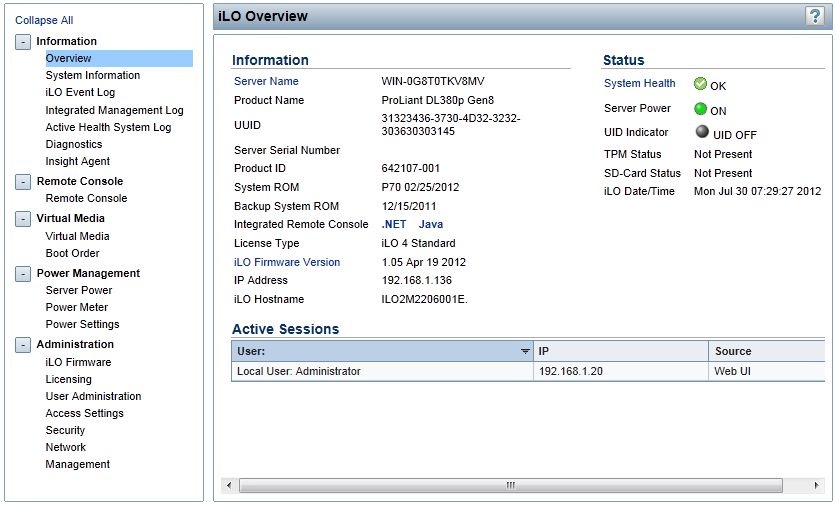
HP iLO management processors virtualize system controls for server setup, health monitoring, power and thermal control, and remote administration. HP iLO functions without additional software installation regardless of the servers' state of operation. Basic system board management functions, diagnostics, and essential Lights-Out functionality ships standard across all HP ProLiant Gen8 rack, tower and blade servers. Advanced functionality, such as graphical remote console, multi-user collaboration, and video record/playback can be activated with optional iLO Advanced or iLO Advanced for BladeSystem licenses.
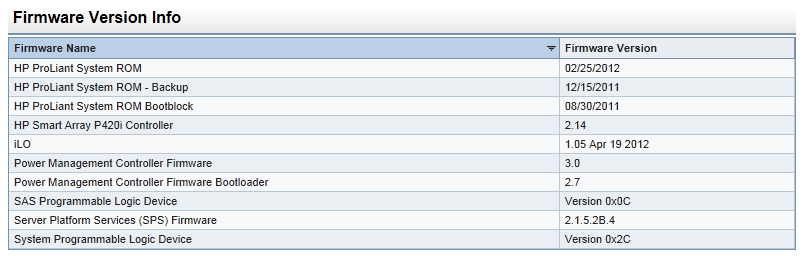
Some of the primary features enabled with advanced iLO functionality include remote console support beyond BIOS access or advanced power monitoring capabilities to see how much power the server is drawing over a given period of time. In our case our system shipped with basic iLO support, which gave us the ability to remotely power on or off the system or provided remote console support (which ended as soon as the OS started to boot). Depending on the installation, many users can probably get by without the advanced features, but when tying the server into large scale-out environments, the advanced iLo featureset can really streamline remote management.
Design and Build
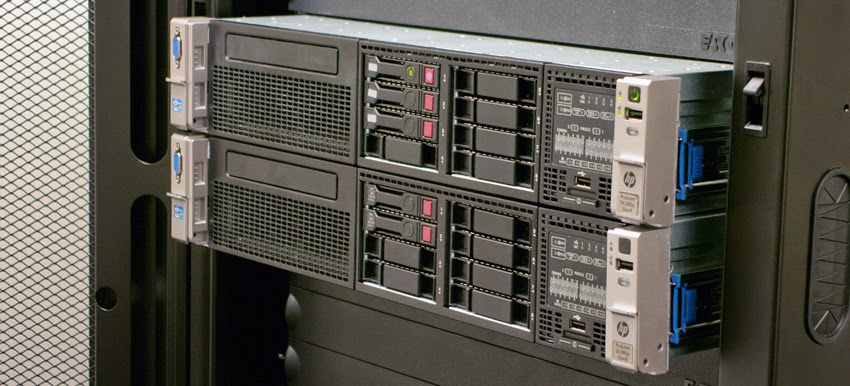
Our DL380p Gen8 review model came with a Sliding-Rack Rail Kit and an ambidextrous Cable Management Arm. The rail kit system offers tool-free installation for racks with square or round mounting holes and features an adjustment range of 24-36 inches and quick release levers. Installation into telco racks requires a third-party option kit. The sliding-rack and cable management arm work together, allowing IT to service the DL380p by sliding it out of the rack without disconnecting any cables from the server. Buyers opting for a more basic approach can still buy the DL380p without rails, or with a basic non-sliding friction mount.
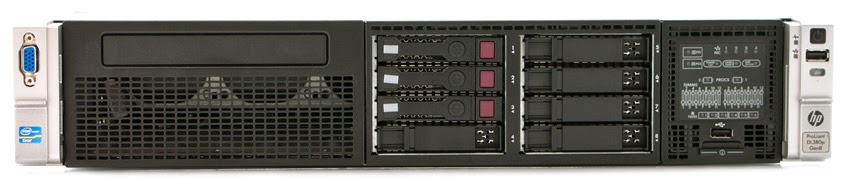
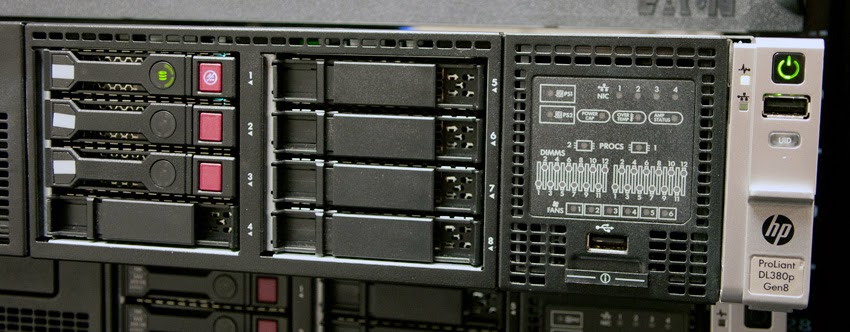
The front of the DL380p features one VGA out and two USB ports. Our unit features eight small form factor (SFF) SAS hot-plug drive bays. There is space for an optional optical drive at to the left of the hot plug bays. With a quick glance of the status LEDs on the front, users can diagnose server failures or make sure everything is running smoothly. If no failures have occurred, the system health LEDs are green. If a failure has occurred, but a redundant feature has enabled the system to continue running, the LED will be amber. If the failure is critical and causes shutdown, the LED illuminates red. If the issue is serviceable without removing the server hood, the External Health LED illuminates. If the hood must be removed, the Internal Health LED illuminates.
The level of detail that HP put into the DL380p is fairly impressive at times, with items as simple as drive trays getting all the bells and whistles. The drive tray includes rotating disk activity LEDs, indicators to tell you when a drive is powered on, and even when not to eject a drive. At times when it seems that all hard drives or SSDs get simple blinking activity LEDs, HP goes the extra mile to provide users with as much information as they can absorb just by looking at the front of the server.
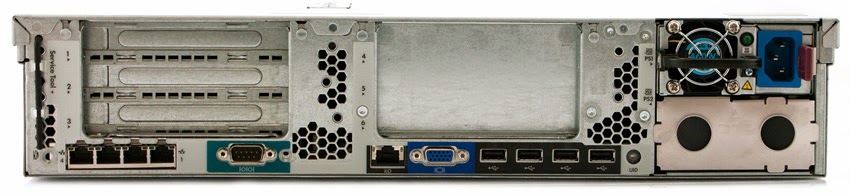
Connectivity is handled from both the front and rear of the DL380p. VGA and USB ports are found on both sides of the server for easy management, although both VGA ports can't be used simultaneously. Additional ports such as a serial interface, and more USB ports can be found on the back of the server along with FlexibleLOM ports (four 1GbE in our configuration) and the iLO LAN connector. To get the ProLiant DL380p Gen8 server up and running immediately, HP ships these servers standard with a 6-foot C-14 to C13 power cord for use with a PDU.
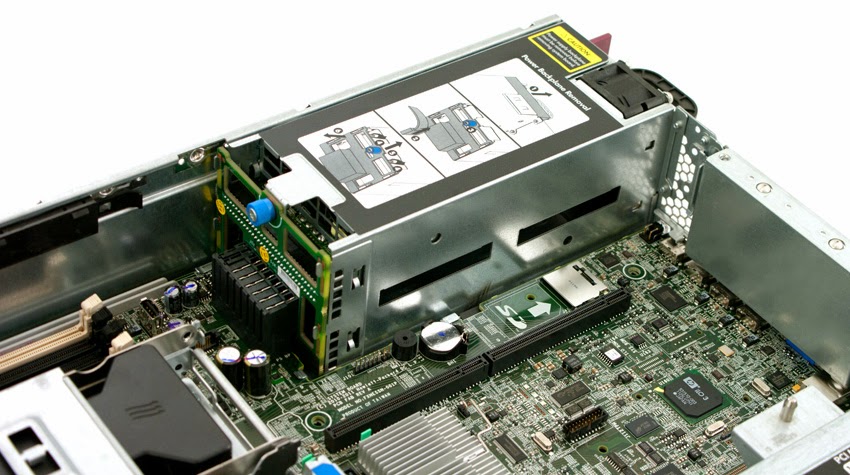
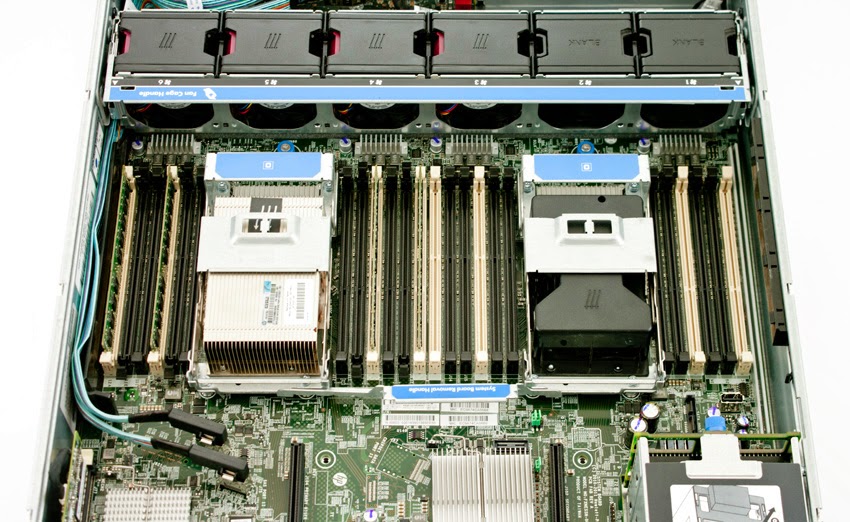
Internally, HP put substantial effort into making the ProLiant DL380p Gen8 easy to service while packing the most features they could into the small 2U form-factor. The first thing buyers will notice is the cabling, or lack thereof, inside the server chassis. Many of the basic features are routed on the motherboard itself, including what tends to be cluttered power cabling. Other tightly-integrated items including the on-board FlexibleLOM 4-port 1GbE NIC and the Smart Array P420i RAID controller, adding network and drive connectivity without taking over any PCIe slots. In a sense this allows buyers to have their cake and eat it too, packing the DL380p with almost every feature and still leaving room for fast PCIe application accelerators or high-speed aftermarket networking interconnects such as 10/40GbE or 56Gb/s InfiniBand.
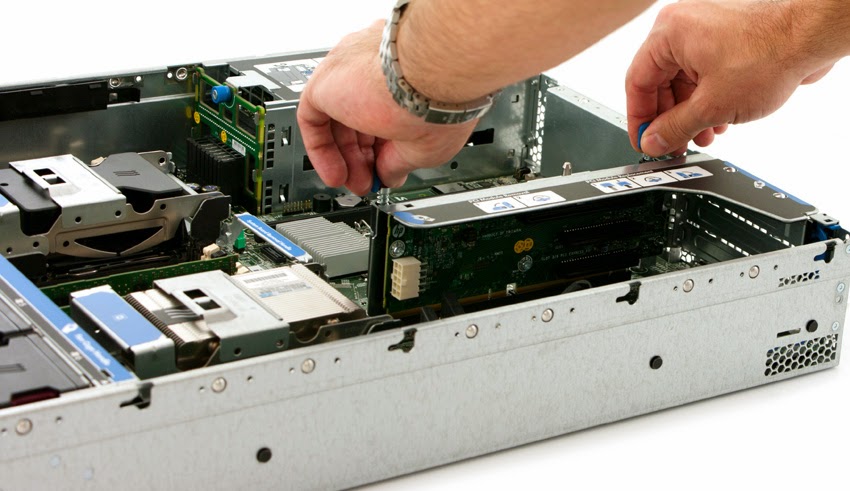
When it comes time to install new hardware or quickly replace faulty buyers or their IT departments will enjoy the tool-free serviceable sections of the DL380p. No matter if you are swapping out system memory, replacing a processor, or even installing a new PCIe add-on card, you don't need to break out a screwdriver. HP also includes a full hardware diagram on the inside of the system cover, making it easy to identify components when it comes time to replacing them.
Cooling
Inside most server chassis, cooling and cable management can go hand in hand. While you can overcome some issues with brute force cooling, a more graceful approach is to remove intrusive cabling that can disrupt proper airflow for efficient and quiet cooling. HP went to great lengths integrating most cables found in servers, including power cabling, or went with flat cables tucked against one side for data connections. You can see this with the on-board Smart Array P420i RAID controller that connects to the front drive bay with flat mini-SAS cables.
While keeping a server cool is just one task to accomplish inside a server, making sure it works and is easily field-serviceable are two distinct items. All fans on the HP DL380p held in with quick-connects, and can be swapped out by removing the top lid in seconds.
On the cooling side of things, the DL380p does a great job of providing dedicated airflow for all the components inside the server chassis, including add-on PCIe solutions. Through the BIOS, users can change the amount of cooling needed, including overriding all automatic cooling options to force max airflow if the need arises. If that's the case, make sure no loose paperwork is around, as it will surely be sucked to the front bezel from the tornado of airflow. In our testing with PCIe Application Accelerators installed and stressed, stock cooling, or slightly increased cooling was enough to keep everything operating smoothly.
Power Efficiency
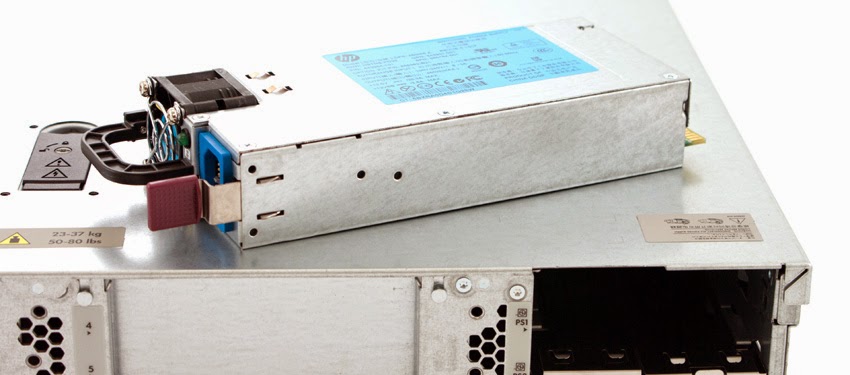
HP is making a big push into higher efficiency servers that can be seen across the board with a greater push for lower power-draw components. The ProLiant DL380p includes a high-efficiency power supply, our model is equipped with the 94% efficient Common Slot Platinum PSU.
Less power is wasted as heat in the AC to DC conversion process, which means that for every 100 watts you send your power supply, 94 watts reaches the server, instead of 75 watts or less with older models.
Conclusion
We've logged hands on time with just about every major server brand, and even some not so major brands. The one thing that resonates with the HP Gen8 ProLiants is just how tightly they're put together. The interior layouts are clean, cabling is tucked away (or completely integrated with the motherboard) and thoughtfully done and even the PCIe riser boards support the latest generation PCIe storage cards. From a storage perspective, the latter is certainly key, if an enterprise is going to invest in the latest and greatest storage technology, the server better support the expected throughput.
While this first part of our HP ProLiant DL380p review gives a comprehensive overview of the system itself, part two will incorporate performance and compatibility testing with a wide array of storage products. While most SATA and SAS drives will perform roughly the same in any system, the latest PCIe storage solutions have a way of separating the men from the boys in the server world. Stay tuned for our second review installment that will cover these storage concerns and other key areas such as multi-OS performance variability.
Availability
HP ProLiantDL380p Gen8 Servers start $2,569 and are available now.